Note
Access to this page requires authorization. You can try signing in or changing directories.
Access to this page requires authorization. You can try changing directories.
This article outlines the basic steps to get started with the FHIR® service in Azure Health Data Services.
Prerequisites
To complete the steps in this article, you need:
- An Azure subscription.
- Permissions to create resources in the Azure subscription.
- An Azure Health Data Services workspace. To create and deploy a workspace, see Deploy workspace in the Azure portal.
- A FHIR service instance. You can create a FHIR service instance in the Azure portal.
Access the FHIR service
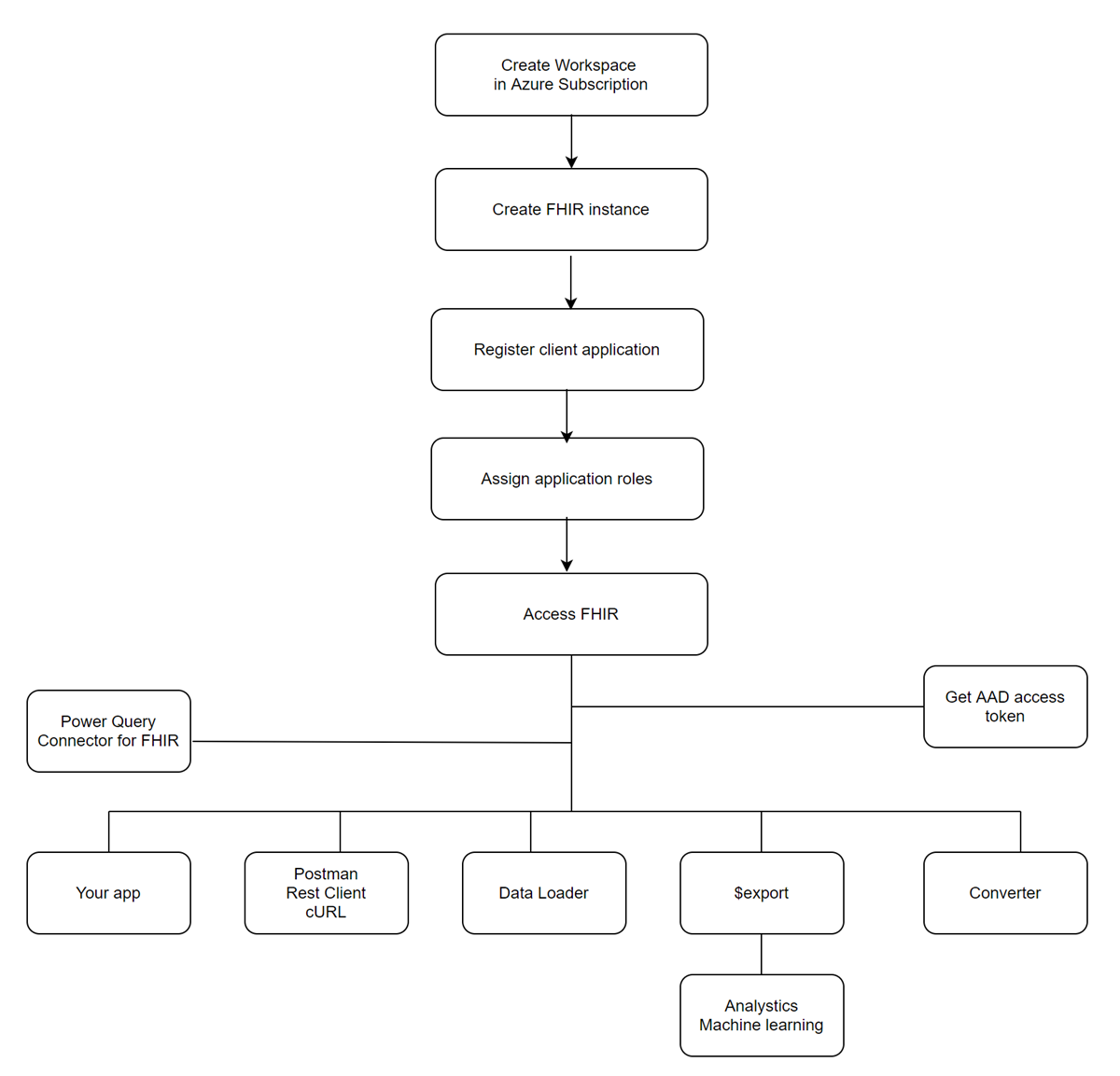
Microsoft Entra ID secures the FHIR service and you can't disable it. To access the service API, you must create a client application (also referred to as a service principal) in Microsoft Entra ID, and grant it the right permissions.
Register a client application
Create or register a client application from the Azure portal, or by using PowerShell or Azure CLI scripts. Use this client application for one or more FHIR service instances. You can also use it for DICOM services in Azure Health Data Services.
If you create the client application with a certificate or client secret, renew the certificate or client secret before expiration and replace the client credentials in your applications.
You can delete a client application. Before you delete a client application, ensure it isn't used in production, dev, test, or quality assurance (QA) environments.
Grant access permissions
You can grant access permissions or assign roles in the Azure portal, or by using PowerShell and Azure CLI scripts.
Perform create, read, update, and delete (CRUD) transactions
You can perform Create, Read (search), Update, and Delete - CRUD - transactions against the FHIR service in your applications or by using tools such as REST Client and cURL. Because the FHIR service is secured by default, you need to obtain an access token and include it in your transaction request.
Get an access token
You can obtain a Microsoft Entra access token by using PowerShell, Azure CLI, REST CCI, or .NET SDK. For more information, see Get an access token.
Access using existing tools
- REST Client
- cURL
- There are tools available online that offer intuitive interfaces for API testing and development. To use tools for accessing the FHIR service, refer to the open-source sample. Starter collection of FHIR sample queries
Load data
You can load data directly using the POST or PUT method against the FHIR service. To bulk load data, use the $import operation. For information, see import operation.
CMS, search, profile validation, and reindex
To learn more about how to configure the FHIR service for the Centers for Medicare and Medicaid Services (CMS) Interoperability and Patient Access rule, see Centers for Medicare and Medicaid Services (CMS) Interoperability and Patient Access rule.
To learn more about search parameters, see Selectable search parameters for the FHIR service in Azure Health Data Services and Custom search parameters. In cases where you need to reindex your FHIR service database, see Running a reindex job.
The FHIR service in Azure Health Data Services allows you to validate resources against profiles to see if the resources conform to the profiles. For more information, see Validate FHIR resources against profiles in Azure Health Data Services.
Export data
Optionally, you can export data to Azure Storage and use it in your analytics or machine-learning projects. You can export the data "as-is" or de-identified in ndjson format.
Convert data
Optionally, you can convert data from HL7 v2 and other formats to FHIR R4.
Using FHIR data in Power BI dashboard
Optionally, you can create Power BI dashboard reports with FHIR data. For more information, see Power Query connector for FHIR.
Next step
Note
FHIR® is a registered trademark of HL7 and is used with the permission of HL7.