Note
Access to this page requires authorization. You can try signing in or changing directories.
Access to this page requires authorization. You can try changing directories.
The PostgreSQL extension for Visual Studio Code provides a connection dialog that supports multiple authentication methods, SSL/TLS encryption, and organizational tools such as server groups and saved connections. This article covers the core connection tasks: opening the dialog, choosing an authentication method, saving and reusing connections, and organizing servers.
Tip
For SSH tunnels, connection string parsing, or certificate file configuration, see Advanced connection options.
Open the connection dialog
You can open the connection dialog in several ways:
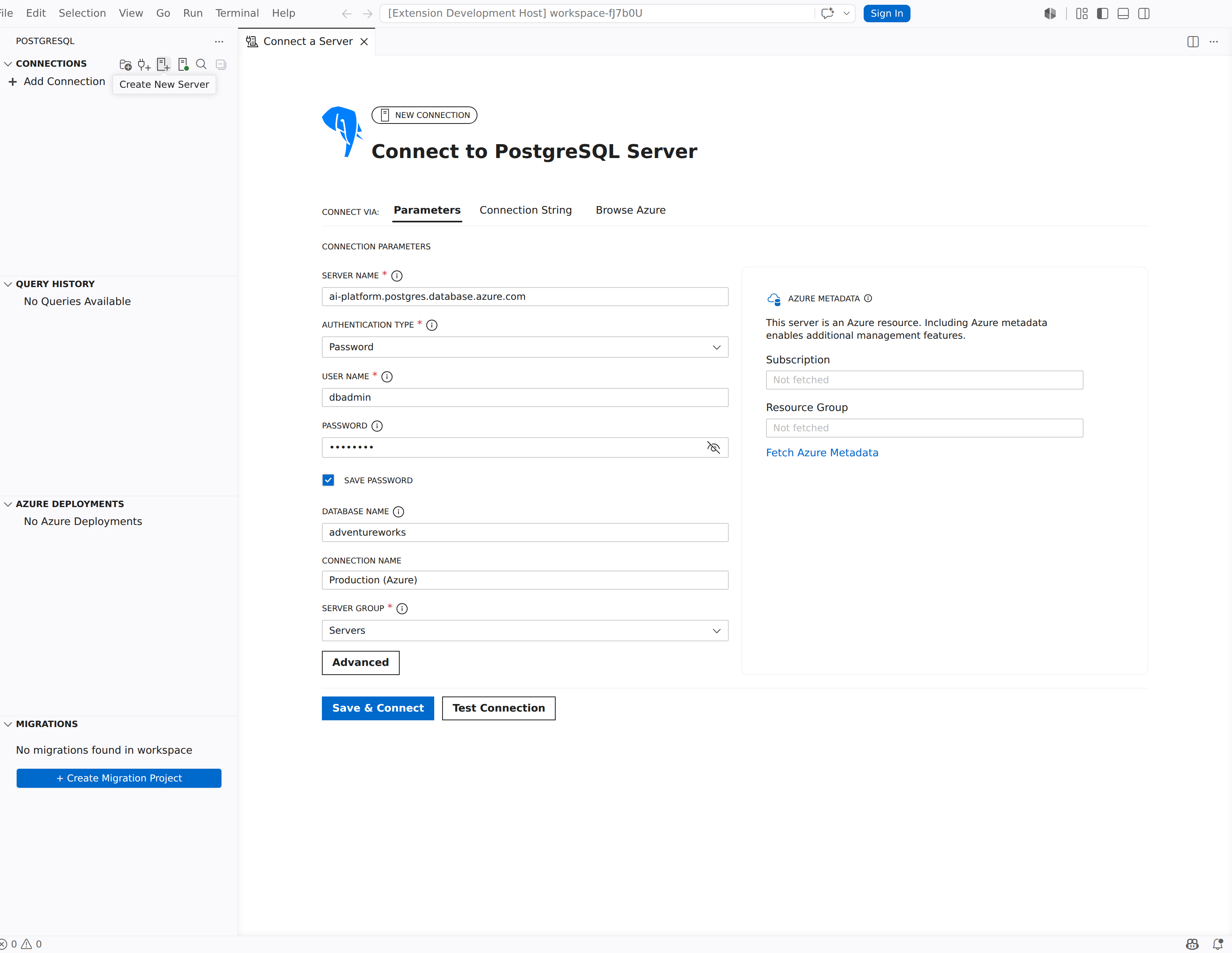
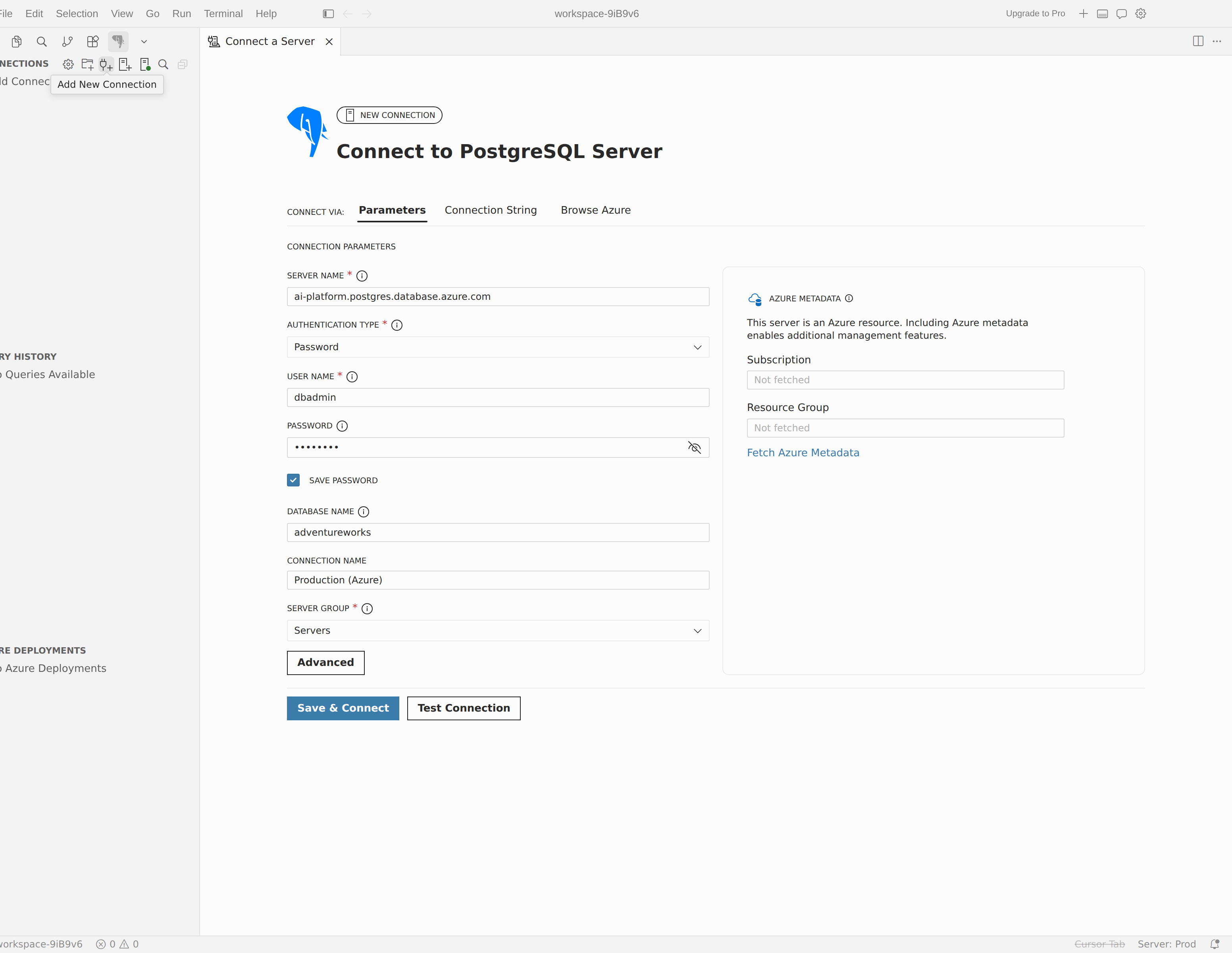
- Connections: Hover over the Connections section header and select Add New Connection (the + icon).
- Command Palette: Run PGSQL: Add New Connection.
- Saved or recent connection: Select a connection card from the Saved Connections or Recent Connections list in the side panel to load its settings into the dialog.
When you open a new dialog, the header reads New Connection and the title reads Connect to PostgreSQL Server. When you edit an existing connection, the header changes to Edit Connection.
Choose an input mode
The Connect via: tabs at the top of the dialog let you choose how to supply connection details:
| Tab | Description |
|---|---|
| Parameters | Fill in individual fields such as Server name, Authentication Type, User name, Password, Database name, and Connection Name. This is the default mode. |
| Connection String | Paste a connection string in any supported format. The extension parses the string and shows the extracted Server name, User name, and Database name in a read-only Connection Details panel. |
| Browse Azure | Browse your Azure subscriptions, resource groups, and servers to select an Azure Database for PostgreSQL flexible server or Azure HorizonDB (Preview) cluster directly. Requires an Azure account signed in to Visual Studio Code. |
All three modes share the same Save & Connect and Test Connection buttons at the bottom of the dialog. The Advanced button opens the Advanced Connection Settings drawer in any mode.
Fill in connection parameters
When you use the Parameters tab, the dialog presents the following main fields:
| Field | Description |
|---|---|
| Server name | Hostname or IP address of the PostgreSQL server. |
| Authentication Type | Method used to authenticate. See Authentication types. |
| User name | PostgreSQL database user or role. Visible when Authentication Type is Password or AWS IAM (RDS/Aurora). |
| Password | Password for the user account. Visible when Authentication Type is Password. |
| Save Password | Check this box to store the password securely. See Password storage. |
| Database name | Name of the database to connect to. Leave blank to connect to the default database. |
| Connection Name | Optional friendly name for this connection. The extension displays this name in the Connections tree and the Saved Connections list. |
Additional fields appear depending on the authentication type. For Entra Auth, the dialog shows Entra Account, Entra Username, and Tenant. For AWS IAM (RDS/Aurora), the dialog shows AWS Profile and AWS Region.
Note
The Port field is located in the Advanced Connection Settings drawer under the top-level options. The default port is 5432.
Authentication types
The Authentication Type dropdown list offers four options.
Password
Password authentication is the standard PostgreSQL method. You provide a user name and password that the server validates against its authentication configuration (typically pg_hba.conf).
- Set Authentication Type to Password.
- Enter a User name and Password.
- Optionally select Save Password to store the password securely.
- Select Save & Connect.
Password storage
When you select Save Password, the extension stores the password through the Visual Studio Code SecretStorage API, which delegates to the operating system's credential manager:
- macOS: Keychain
- Windows: Credential Manager
- Linux:
libsecret(GNOME Keyring or KWallet)
Saved passwords are associated with the specific connection and are never stored in plaintext settings files.
Microsoft Entra authentication
Microsoft Entra authentication (formerly Azure Active Directory) provides token-based, passwordless authentication for Azure Database for PostgreSQL flexible server. The dialog labels this option Entra Auth.
Note
Entra authentication requires an Azure Database for PostgreSQL flexible server instance with Entra authentication enabled. See the Microsoft Entra authentication with Azure Database for PostgreSQL for configuration details.
To connect with Entra authentication:
- Add your Entra account. Open the Command Palette and run PGSQL: Add Microsoft Entra Account. Sign in with your Entra credentials in the browser window that opens.
- Open the connection dialog. Set Authentication Type to Entra Auth.
- Select your account. Choose the account you added from the Entra Account dropdown list.
- Select a tenant. If your account belongs to multiple tenants, select the appropriate tenant from the Tenant dropdown list.
- Enter the Entra username. Type the Entra user name for the PostgreSQL role mapped to your identity.
- Connect. Select Save & Connect. The extension acquires an access token and authenticates to the PostgreSQL server on your behalf.
Saved Entra connection profiles continue to use the legacy AzureMFA value. The canonical bearer-token:entra-id value is reserved for server-driven dispatch and future profile migration.
To remove an Entra account, run PGSQL: Remove Microsoft Entra Account from the Command Palette and select the account to remove. To clear cached tokens without removing the account, run PGSQL: Clear Microsoft Entra account token cache.
Dual-account model
The extension supports a dual-account model for Azure scenarios. You can use one Entra account for database authentication and a different account for browsing Azure resources (subscriptions, resource groups, and servers).
- The Entra Account field in the connection dialog controls which identity authenticates to the database.
- The Browse Azure tab uses the Azure account signed in to Visual Studio Code (via the Azure Resources extension) for subscription and resource enumeration.
Tip
This separation is useful when your database administrator account differs from the account that manages Azure subscriptions. Configure each independently to use the correct permissions for each task.
AWS IAM (RDS/Aurora)
AWS IAM authentication uses an AWS-signed database authentication token instead of a stored password. Use this option only for Amazon RDS for PostgreSQL or Amazon Aurora PostgreSQL database endpoints that have IAM database authentication enabled. A manually entered AWS Region can supplement region inference, but it doesn't make custom PostgreSQL hosts, non-RDS hosts, or CNAME aliases supported. The dialog labels this option AWS IAM (RDS/Aurora).
Note
Your PostgreSQL database role must exist on the server and must be allowed to use IAM database authentication. For RDS and Aurora PostgreSQL, grant the role rds_iam. For more information, see IAM database authentication for MariaDB, MySQL, and PostgreSQL.
To connect with AWS IAM authentication:
- Prepare AWS credentials. Configure the AWS CLI flow required by your organization. Examples include
aws configure,aws sso login --profile <profile>, or an organization-specificcredential_processsetup. - Open the connection dialog. Set Authentication Type to AWS IAM (RDS/Aurora).
- Enter the server endpoint. Use the Amazon RDS or Aurora PostgreSQL endpoint in Server name.
- Enter the database role. In User name, enter the PostgreSQL database user or role. This isn't the AWS Profile, IAM user, IAM role, or ARN.
- Choose the AWS credential source. Select or enter an AWS Profile. Leave AWS Profile blank to use the default AWS credential chain.
- Set the AWS Region if needed. The extension infers the region from standard RDS and Aurora hostnames when possible. If the hostname doesn't include the region, enter it in AWS Region.
- Connect. Select Save & Connect. The extension signs a short-lived authentication token and uses it as the PostgreSQL password for the new connection.
The AWS credential chain supports environment variables, shared AWS configuration and credentials files, AWS SSO profiles, and credential_process profiles. It doesn't use EC2 or ECS instance/container metadata credentials, and it doesn't use metadata-backed credential_source profile chains.
AWS IAM database authentication tokens are valid for 15 minutes. The extension obtains new tokens as needed while the underlying AWS credentials remain valid. No manual token refresh steps are necessary.
None
None skips authentication entirely. The extension connects without sending credentials. This option applies to PostgreSQL servers configured with trust authentication or similar no-credential configurations.
Connect, test, and disconnect
After you fill in connection details, use the actions in the connection dialog and the Connections tree to save the profile, connect, edit, or remove servers.
Save & Connect
After you fill in the connection details, select Save & Connect to establish the connection. This button performs two actions:
- Saves the connection as a profile in your VS Code settings.
- Connects to the server.
If the connection succeeds, the server appears in the Connections tree. The connection also appears in the Saved Connections and Recent Connections lists in the connection dialog.
Test Connection
Select Test Connection to verify the connection parameters without saving the profile or adding the server to the Connections tree. The button shows a spinner while the test runs, then displays a checkmark on success or a warning icon on failure.
Disconnect
To disconnect from a server:
- Connections: Right-click the server node and select Disconnect.
- Command Palette: Run PGSQL: Disconnect.
Edit an existing connection
To edit a saved connection, right-click the server in the Connections tree and select Edit Connection. The connection dialog opens in edit mode with the header Edit Connection and the current profile name as the title. Make your changes and select Save & Connect to reconnect with the updated settings.
Advanced connection settings
Select the Advanced button below the main fields to open the Advanced Connection Settings drawer. The drawer contains:
- Top-level options: Scope (User or Workspace), Port, Application name, Connect timeout, and Multi Subnet Failover.
- Grouped sections: Collapsible accordion sections for Source, Security, Server, Client, SSL, Copilot, and SSH Tunnel.
The Scope option controls where the connection profile is saved:
| Scope | Where the profile is stored |
|---|---|
| User | VS Code user settings (global, available in any workspace) |
| Workspace | VS Code workspace settings (shared with collaborators via .vscode/settings.json) |
For SSL and SSH tunnel configuration details, see Advanced connection options.
Per-connection Copilot access mode
The Copilot section in the advanced drawer includes a Copilot access mode dropdown list with three options:
| Option | Effect |
|---|---|
| Use Global Setting | Inherits the global pgsql.copilot.accessMode value. |
| Read Only | Restricts Copilot to read-only operations on this connection. |
| Read/Write | Allows Copilot to execute read and write operations on this connection. |
SSL and TLS
SSL/TLS encrypts the connection between Visual Studio Code and your PostgreSQL server. Configure the SSL mode in the SSL section of the Advanced Connection Settings drawer or in your connection string.
SSL modes
| Mode | Description |
|---|---|
| Disable | No SSL encryption. The connection is unencrypted. |
| Allow | Attempts an unencrypted connection first; falls back to SSL if the server requires it. |
| Prefer | Attempts SSL first; falls back to an unencrypted connection if SSL negotiation fails. This is the default for many PostgreSQL clients. |
| Require | Requires SSL encryption but doesn't verify the server certificate. Protects against passive eavesdropping. |
| Verify-CA | Requires SSL and verifies that the server certificate is signed by a trusted certificate authority (CA). |
| Verify-Full | Requires SSL, verifies the CA, and checks that the server hostname matches the certificate's Common Name or Subject Alternative Name. Provides the strongest protection. |
Note
Azure Database for PostgreSQL requires SSL by default. Use Require for most scenarios or Verify-Full with the DigiCert Global Root G2 certificate for maximum security.
Tip
For certificate file configuration and mutual TLS scenarios, see Advanced connection options.
Manage saved and recent connections
The connection dialog includes a side panel with two lists:
- Saved Connections: Connections you have previously saved with Save & Connect. Each card shows the server display name. Hover over a card to reveal a delete button. Select a card to load its settings into the dialog.
- Recent Connections: Connections you have recently used, regardless of whether you saved them with a Connection Name. Hover to reveal a remove button.
The Recent Connections list is capped by the pgsql.maxRecentConnections setting. The maximum number of simultaneous open connections per profile and database is controlled by the pgsql.maxConnections setting (default: 10).
Server groups
Server groups help you organize connections in the Connections tree. You can assign a custom name and color to each group, making it easier to identify environments such as Development, Staging, and Production at a glance.
Create a server group
- Right-click in the Connections tree and select Create Server Group.
- In the dialog, enter a Name, optional Description, and select a Color for the group.


Edit or remove a server group
- Edit: Right-click a server group in the Connections tree and select Edit Server Group to change its name, description, or color.
- Remove: Right-click a server group and select Remove. Connections in the group aren't deleted; they move to the default group.
Assign a connection to a group
When you create or edit a connection, the connection dialog includes a Server Group dropdown list in the main fields area. Select a group from the list to assign the connection to that group.
Group colors appear as a colored bar next to the group name in the Connections tree, providing quick visual identification.
Azure metadata
When you connect to an Azure Database for PostgreSQL flexible server, the connection dialog can display an Azure Metadata panel alongside the form. This panel shows the server's Subscription and Resource Group after you select Fetch Azure Metadata. Including Azure metadata enables management features such as the Server dashboard and Azure Monitor metrics.
Troubleshoot common connection issues
When a connection attempt fails, the cause is usually a network, authentication, or SSL setting. The following sections cover the most common cases.
Connection refused or timeout
If the connection fails before authentication begins, verify the Server name and Port first. Make sure PostgreSQL is running, the port is reachable from your machine, and any network firewall rules allow the connection. You can adjust the Connect timeout in the Advanced Connection Settings drawer to allow more time for slow networks.
SSL or certificate validation errors
If the server requires encryption, confirm that the selected SSL mode in the SSL section of the advanced drawer matches the server configuration. For Verify-CA and Verify-Full, ensure the correct CA certificate is configured. For certificate file details, see Advanced connection options.
Microsoft Entra sign-in or token issues
If Entra authentication fails, confirm that the target Azure Database for PostgreSQL flexible server has Entra authentication enabled, then verify that you selected the correct account and tenant in the connection dialog. If needed, run PGSQL: Remove Microsoft Entra Account and re-add the account. To reset cached tokens, run PGSQL: Clear Microsoft Entra account token cache.
AWS IAM profile or token issues
If AWS IAM authentication fails, verify that Server name is the Amazon RDS or Aurora PostgreSQL endpoint, not a custom hostname or CNAME alias. Confirm that User name is the PostgreSQL database role and that the role has IAM database authentication enabled on the server. Verify that the selected AWS Profile can obtain supported AWS credentials; for example, run aws sts get-caller-identity --profile <profile> for a named profile, or omit --profile when you use the default credential chain. If region inference fails for a supported endpoint, enter the AWS Region manually.
Connection string parsing doesn't populate the right fields
If a pasted connection string doesn't populate the expected values, review the supported input patterns in Advanced connection options. If the source format is unusual, switch to the Parameters tab and enter the values manually.