Note
Access to this page requires authorization. You can try signing in or changing directories.
Access to this page requires authorization. You can try changing directories.
The server dashboard in the PostgreSQL extension shows PostgreSQL connection details, live and historical performance metrics, and supported management tools. You can monitor server activity, open queries, launch the schema visualizer, and access Azure server configuration, all without leaving the editor. The dashboard runs the same way in Visual Studio Code and Cursor; only the AI chat panel that opens from the dashboard's AI buttons differs.
Tip
Set up your server connection first. See Connections and identity. For Azure-specific management actions available from the dashboard, see Azure server management.
Open the server dashboard
- In the Connections tree, right-click a server node.
- Select Dashboard.
The dashboard opens in a tab named <profileName> - Dashboard and shows the page header <connectionLabel> | Performance Dashboard.
Note
The server dashboard is a preview feature that is enabled by default. To disable it, set pgsql.enableServerDashboard to false in your VS Code settings.
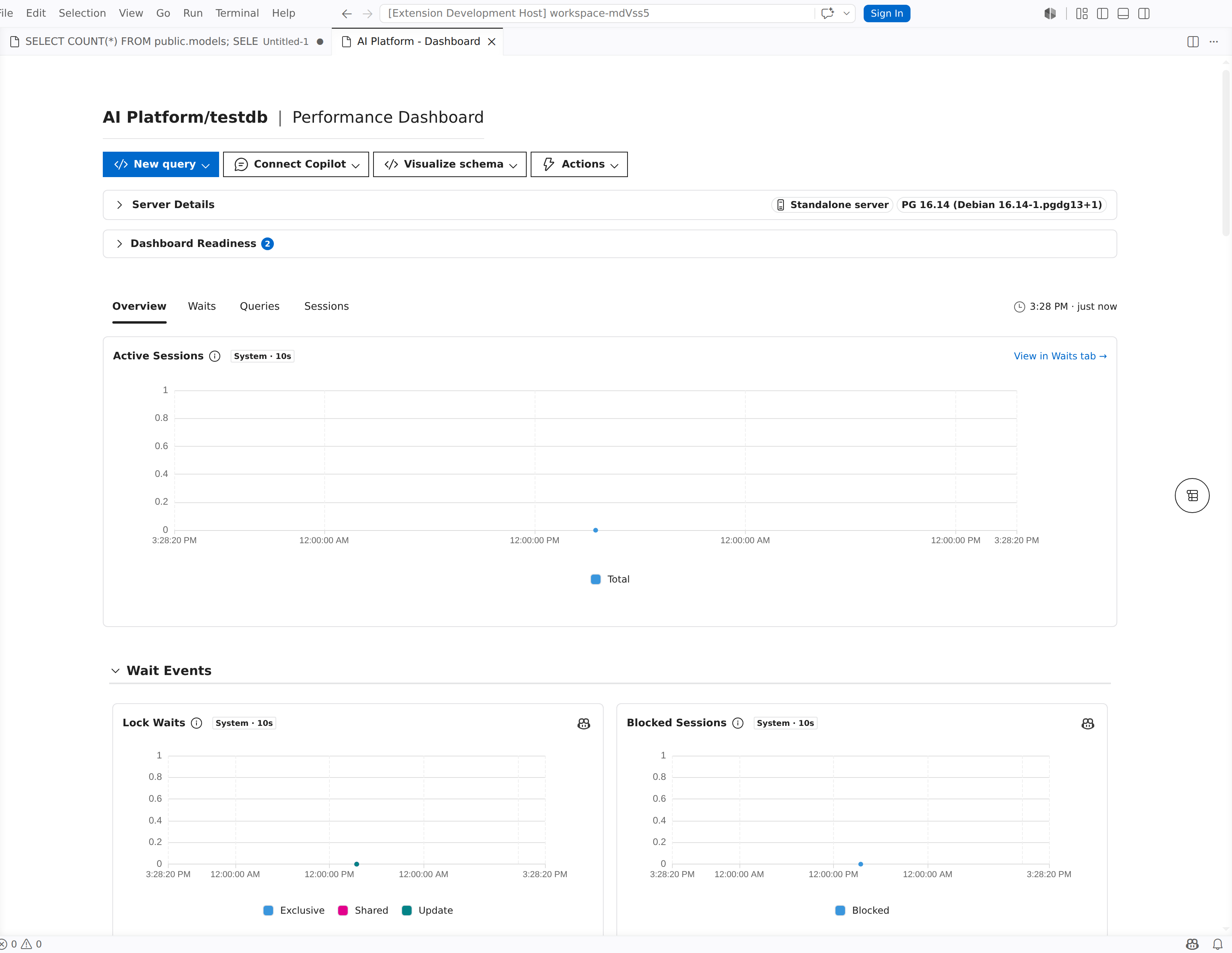

Server details card
The top of the dashboard displays a details card that summarizes the current connection.
| Field | Description |
|---|---|
| Server | The address of the PostgreSQL server. |
| Version | The PostgreSQL version reported by the server. |
| Port | The TCP port used for the connection (defaults to 5432). |
| User | The authenticated user for this connection. |
| Default DB | The database targeted by the connection (defaults to postgres). |
| State | (Azure only) The current state of the Azure Database for PostgreSQL flexible server, such as Ready, Stopped, or Starting. Select the refresh button next to the value to update the state. |
Note
The State field appears only for Azure Database for PostgreSQL flexible server connections.
Toolbar
The toolbar across the top of the dashboard provides quick access to common operations. Some buttons appear only when certain conditions are met.
Connection actions
| Button | Description |
|---|---|
| Connect | Appears when the server is disconnected. Select it to reestablish the connection. While connecting, the button changes to Connecting.... |
| Actions > Disconnect | Disconnect from the server. Available from the Actions dropdown list menu when you're connected. |
When the server is disconnected, database-related buttons in the toolbar are disabled and show the tooltip: "A database connection is required. Connect to the database to enable this feature."
Database actions
| Button | Description |
|---|---|
| New query | Open a new query editor connected to a database on this server. A database picker lets you choose the target database. |
| Connect AI / Connect Copilot | Open an Agent mode session scoped to this server's schema and data. The chat panel that opens is GitHub Copilot Chat in Visual Studio Code and Cursor's native AI panel in Cursor. See Copilot integration. |
| Visualize schema | Launch the schema visualizer for a database on this server. A database picker lets you choose the target database. See Schema visualizer. |
Azure server actions
For Azure Database for PostgreSQL flexible server connections, the Actions dropdown list menu includes server lifecycle operations and the toolbar shows an additional portal button.
| Button | Description |
|---|---|
| Actions > Start | Start a stopped Azure server. |
| Actions > Stop | Stop a running Azure server. Stopping deallocates compute resources and pauses compute billing. |
| Actions > Restart | Restart the Azure server. Use this after changing parameters that require a restart. |
| Azure Portal | Open the server's management blade in the Azure portal in your default browser. |
Note
The Start, Stop, and Restart actions require appropriate Azure role-based access control (RBAC) permissions on the server resource.
Server Settings menu
For supported Azure connections, a Server Settings dropdown list button appears in the toolbar. It provides navigation to Azure management pages that open inside VS Code.
| Menu item | Description |
|---|---|
| Network Configuration | For Azure Database for PostgreSQL flexible server, view and modify firewall rules and public access settings. For Azure HorizonDB (Preview), view and modify firewall rules and Azure services access. |
| Server Parameters | Browse and update PostgreSQL parameters (both static and dynamic). |
| Backups | View backup history and configure backup retention policies. |
| Server Logs | Access and download PostgreSQL server logs for troubleshooting. |
| Clone Server | Clone the Azure server from a backup point. |
Azure Database for PostgreSQL flexible server connections can show the full menu. Azure HorizonDB (Preview) connections can show Network Configuration when the connection has complete Azure resource and pool identity. Parameters, backups, server logs, clone, and lifecycle actions aren't available for Azure HorizonDB (Preview) connections.
Note
The Server Settings button appears only when the extension detects Azure metadata for the server and at least one settings page is available.
Azure metadata prompt
When the extension detects that a server appears to be a supported Azure Database for PostgreSQL resource but Azure metadata isn't yet available, an Azure Server Detected prompt appears in the toolbar. Select Fetch Metadata to retrieve the metadata. Fetching metadata enables Azure management features that depend on resource identity, such as Azure Database for PostgreSQL flexible server Server Settings and Actions, Azure HorizonDB (Preview) Network Configuration, and Azure Monitor metrics where supported.
If the metadata fetch fails, a Failed to Fetch Metadata error message appears with details.
Incomplete metadata banner
If Azure metadata is fetched but the tenant ID is missing, a warning banner appears at the top of the dashboard with the title Incomplete Azure Metadata. Select Fetch Metadata in the banner to retry. The tenant ID is required for server lifecycle operations (Start, Stop, Restart).
Investigation tabs
Below the toolbar and details card, the dashboard organizes monitoring data into four investigation tabs. The server's capabilities determine which tabs are visible.
| Tab | What it shows |
|---|---|
| Overview | Metric charts grouped by category, with a table-of-contents navigator for quick access to each group. |
| Queries | Top SQL statements ranked by execution time, call count, or other metrics, with drill-down into individual query details. |
| Waits | Wait event analysis with a ranked table and an over-time chart that shows where the server spends time waiting. |
| Sessions | Active and idle sessions, a blocking-tree view, lock activity charts, and session-level detail panels. |
Select a tab to switch the content area. The dashboard remembers your active tab within the current session.
Overview
The Overview tab is the default landing view. It displays server metrics as interactive charts organized into collapsible groups.
Metric groups
Metrics are organized into the following groups. Not all groups appear for every server; the dashboard shows only groups that have data available.
| Group | What it covers |
|---|---|
| Resources | CPU utilization, memory usage, and compute-level metrics. |
| Connections | Active connections, connection counts by state, and connection pool metrics. |
| Disk I/O | Read and write throughput, IOPS, and latency. |
| Storage | Disk space used, available storage, and storage percentage. |
| Transactions & Workload | Transaction rates, commits, rollbacks, and rows processed. |
| Wait Events | Summary of top wait event types and their frequency. |
| Maintenance & Autovacuum | Autovacuum activity and dead tuple counts. |
| Transaction ID Safety | Transaction ID age and wraparound metrics. |
| Replication | Replication lag and replica status (when replication is configured). |
Use the table-of-contents navigator on the side to jump directly to a specific group. Select a group header to expand or collapse its charts.
Metric sources
Each metric chart shows a source badge indicating where the data originates:
| Badge | Source | Availability |
|---|---|---|
| System | Server's built-in statistics collector | All PostgreSQL servers |
| azure | Azure Monitor | Azure Database for PostgreSQL flexible server connections with Azure metadata |
When both sources are available, the overview displays metrics from both sources together, each chart labeled with its source badge.
Time window and timezone
Select Local or UTC in the timezone selector to control how chart axes and tooltips display timestamps.
For Azure Monitor metrics, a time window selector lets you choose the date range:
- 1 hour
- 6 hours
- 12 hours
- 1 day
- 7 days
- 30 days
Chart interactions
- Legend: Each chart includes a legend. Select a legend entry to hide that series; select it again to restore it.
- Crosshair sync: When you hover over one chart, all charts in the same tab synchronize their crosshairs to the same timestamp, so you can correlate metrics across charts.
- Zoom: Use the chart zoom controls to focus on a time range of interest.
Queries
The Queries tab shows query performance data from the PostgreSQL statistics collector. Use it to identify slow or frequently called SQL statements.
Query statistics require the pg_stat_statements extension to be enabled on the connected PostgreSQL server.

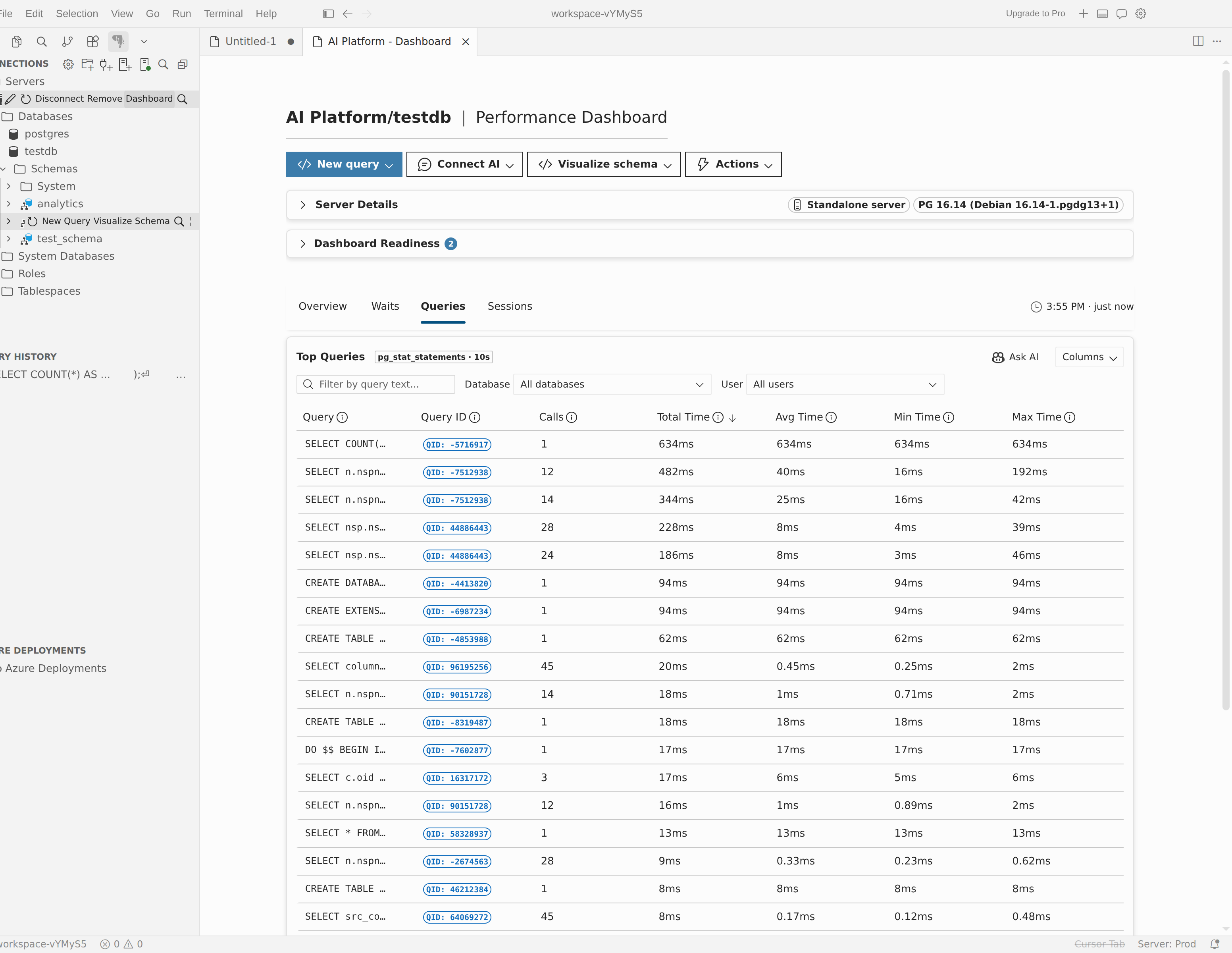
Top SQL table
The main view is a ranked table of SQL statements. Each row shows:
| Column | Description |
|---|---|
| Query | Normalized SQL text. Select a row to open the detail panel. |
| Query ID | The PostgreSQL query identifier. |
| Calls | Total number of times the statement was executed. |
| Total Time | Cumulative execution time. |
| Avg Time | Average execution time per call. |
| Rows | Total rows returned or affected. |
| Database | The database where the statement ran. |
| User | The PostgreSQL role that ran the statement. |
Use the Database and User filter dropdowns above the table to narrow results.
Query detail panel
Select a row in the top SQL table to open a detail panel on the right. The detail panel shows:
- Full SQL text with syntax highlighting
- Execution statistics (calls, total time, average time, min/max time, standard deviation)
- An execution chart that visualizes the statement's performance over time
Select Ask Copilot (or Ask AI in Cursor) in the detail panel to open an AI chat session with the query's context preloaded.
Waits
The Waits tab helps you understand where the server spends time waiting. It combines a ranked table with an over-time chart.
- Ranked table: Lists wait event types sorted by total wait time. Each row shows the wait event name, category, and cumulative time.
- Over-time chart: Visualizes wait events stacked over time, so you can see how wait patterns change during a monitoring window.

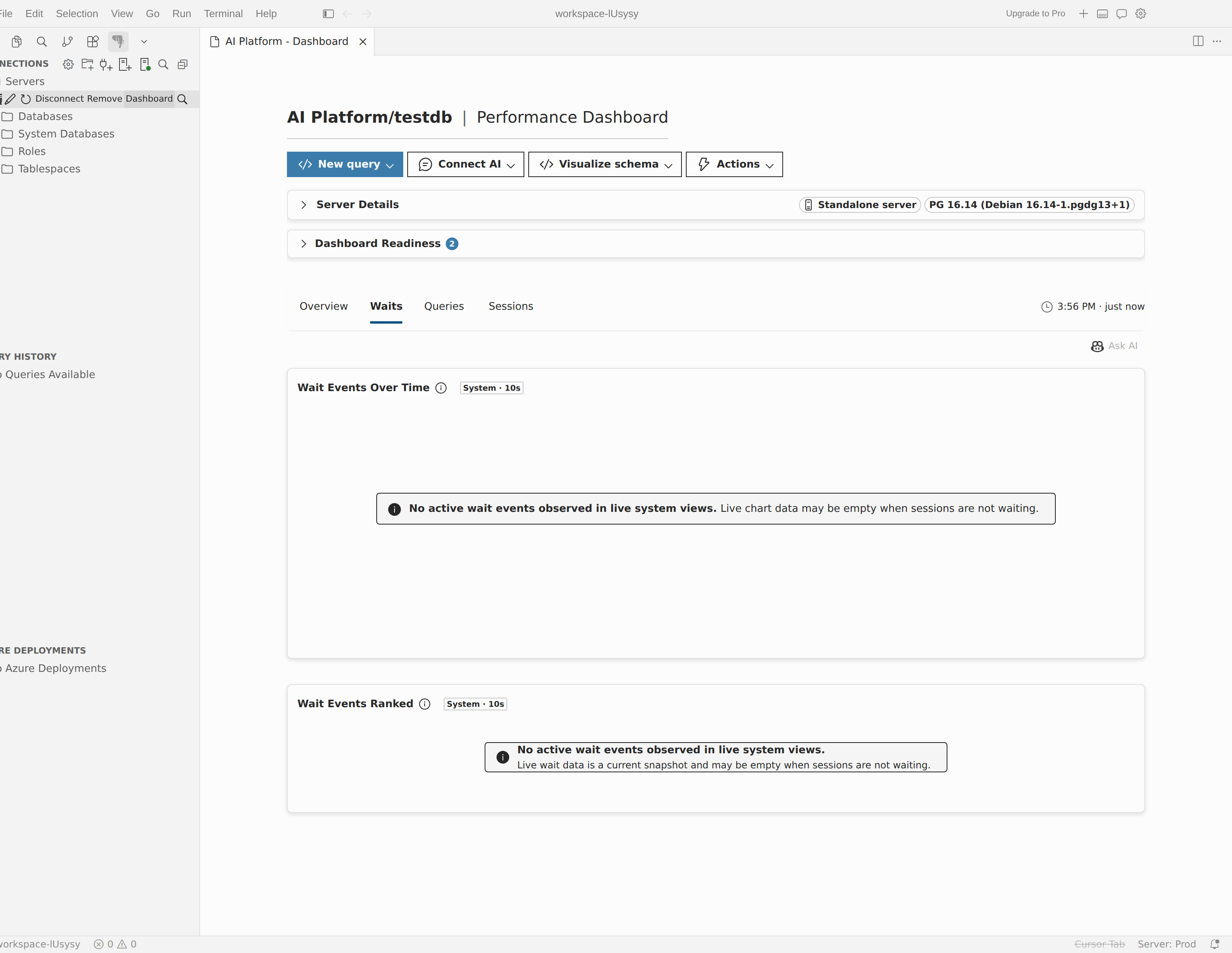
Charts in the Waits tab use crosshair synchronization, so hovering over one chart highlights the same time point on the other.
Select Ask Copilot (or Ask AI in Cursor) to open an AI chat session with the current wait event data as context.
Sessions
The Sessions tab shows active database sessions and helps you identify blocking relationships.
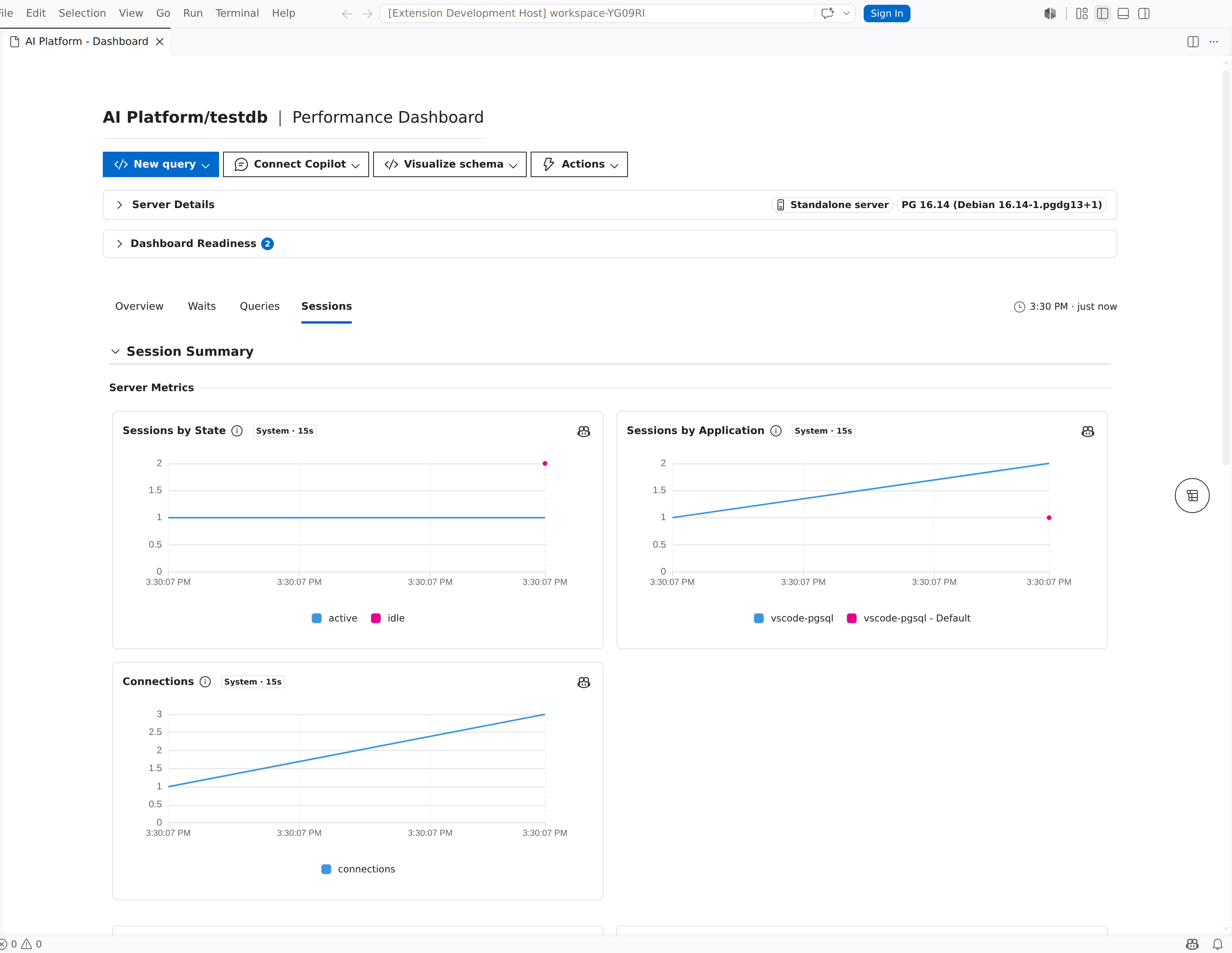

Session summary cards
At the top, summary cards show counts for session categories such as Active, Idle, and Blocked sessions.
Sessions table
The session table lists individual sessions with the following columns:
| Column | Description |
|---|---|
| PID | Process ID of the backend. |
| User | PostgreSQL role for the session. |
| Database | Connected database. |
| Application | Client application name. |
| State | Session state (active, idle, idle in transaction, etc.). |
| Wait Type | Current wait type, if any. |
| Wait Event | Specific wait event name. |
| Query | Current or last executed query text. |
| Duration | How long the current state has persisted. |
| Backend Type | Backend process type (client backend, autovacuum worker, etc.). |
Use the filter controls above the table to narrow sessions by workload type, application, or state.
Select Ask Copilot (or Ask AI in Cursor) from the Sessions table header to open an AI chat session with session data as context. When blocking chains are present, the analysis focuses on blocking relationships and session health.
Block tree
When blocking relationships exist between sessions, the dashboard shows a blocking tree that visualizes which sessions are blocking others. Expand tree nodes to trace the chain from the blocking session to its waiters.
Lock activity charts
Lock activity charts display lock acquisition and wait patterns over time, giving you a visual summary of contention.
Session detail panel
Select a session row to open a detail panel showing full session information, including the complete query text and session properties.
Replica topology
For Azure Database for PostgreSQL flexible server connections that use read replicas, a Replica topology panel appears in the dashboard. It shows the primary server and its replicas with status indicators, switchover readiness, and any topology warnings.
Ask the AI from the dashboard
The Ask Copilot button (Ask AI in Cursor) appears in several dashboard contexts: the Queries tab header, the Waits tab, the Sessions tab, and individual metric charts. When you select it, the extension opens an AI chat session in Agent mode with the relevant dashboard data (metrics, query details, wait events, or session information) preloaded as context.
Note
The Ask Copilot / Ask AI button requires an active AI assistant: GitHub Copilot installed and signed in for Visual Studio Code, or Cursor's built-in AI in Cursor. The button is disabled while data is still loading or when no data is available.
Disconnected state
When the server is disconnected, the dashboard shows a prompt explaining that a database connection is required. Select Connect to reestablish the connection and load dashboard data.
Azure metrics status messages
When viewing Azure Monitor metrics, the dashboard might show status messages if the metrics aren't available:
- Missing Azure Metadata: Azure metadata is required for historical metrics. Select Fetch Metadata to retrieve it.
- Insufficient Permissions: You don't have the required Azure permissions to query metrics from Azure Monitor. Select View Required Permissions for details.